Invite a user
Who this is for. Shop owner.
Watch it
15 seconds, narrated, captions on. Sample shop. Made-up names and tickets.
What the clip says
Settings, Users, Invite user. A name, an email, and a role. Shop admin or Counter. Send invite. The new row sits pending until they accept.
Only a shop owner sees the Users tab. Send a new hire an invite with their name, email, and role, and they show up on the table as invited until they sign in and accept.
Steps
- Settings, Users tab.
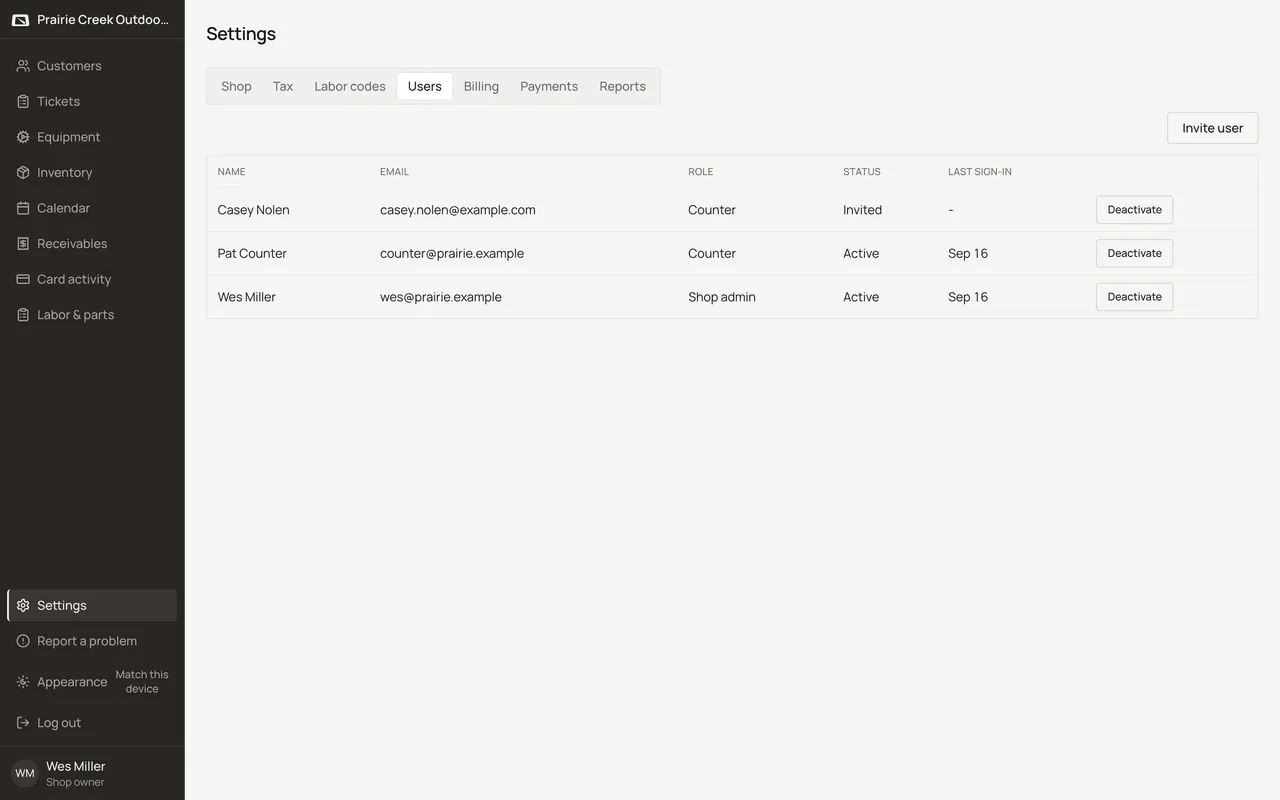
- Click Invite user.
- Fill Name, Email, and Role. Role is Shop admin or Counter; there is no Technician choice on screen.
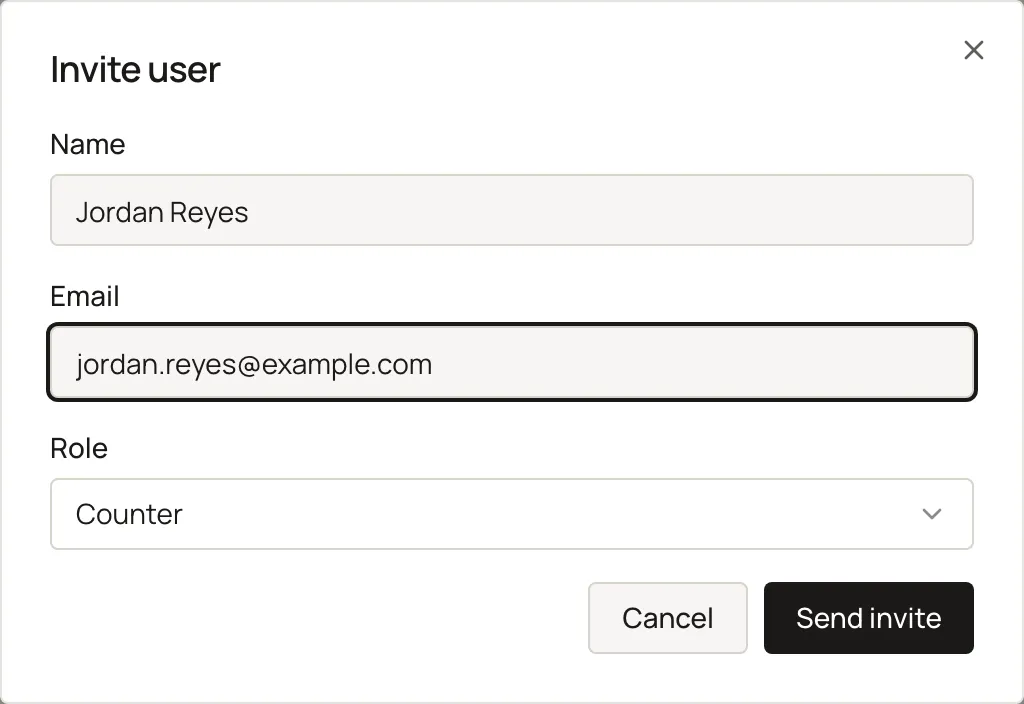
- Click Send invite. The new row reads invited until they sign in and accept.
What happens to money and stock
Nothing moves.
Watch out for
- Role choices are Shop admin or Counter only. Technician is not a UI option, it is an alias of Counter.
- A blank email shows "Enter an email address." A duplicate or bad one shows whatever the shop's own message says, or "Could not send that invite. Try again."
Not yet
No bulk invite. Each person is invited one at a time, by hand.
Updated September 16, 2026