Deactivate or reactivate a user
Who this is for. Shop owner.
Watch it
12 seconds, narrated, captions on. Sample shop. Made-up names and tickets.
What the clip says
Settings, Users. Each row has a Deactivate or Reactivate button. Deactivate blocks that sign-in right away. Reactivate lets them back in, same as before.
Each row on the Users table has a Deactivate or Reactivate button. A saved-note banner confirms the change inline, and a deactivated person’s history stays exactly where it was.
Steps
- Find the person on Settings, Users.
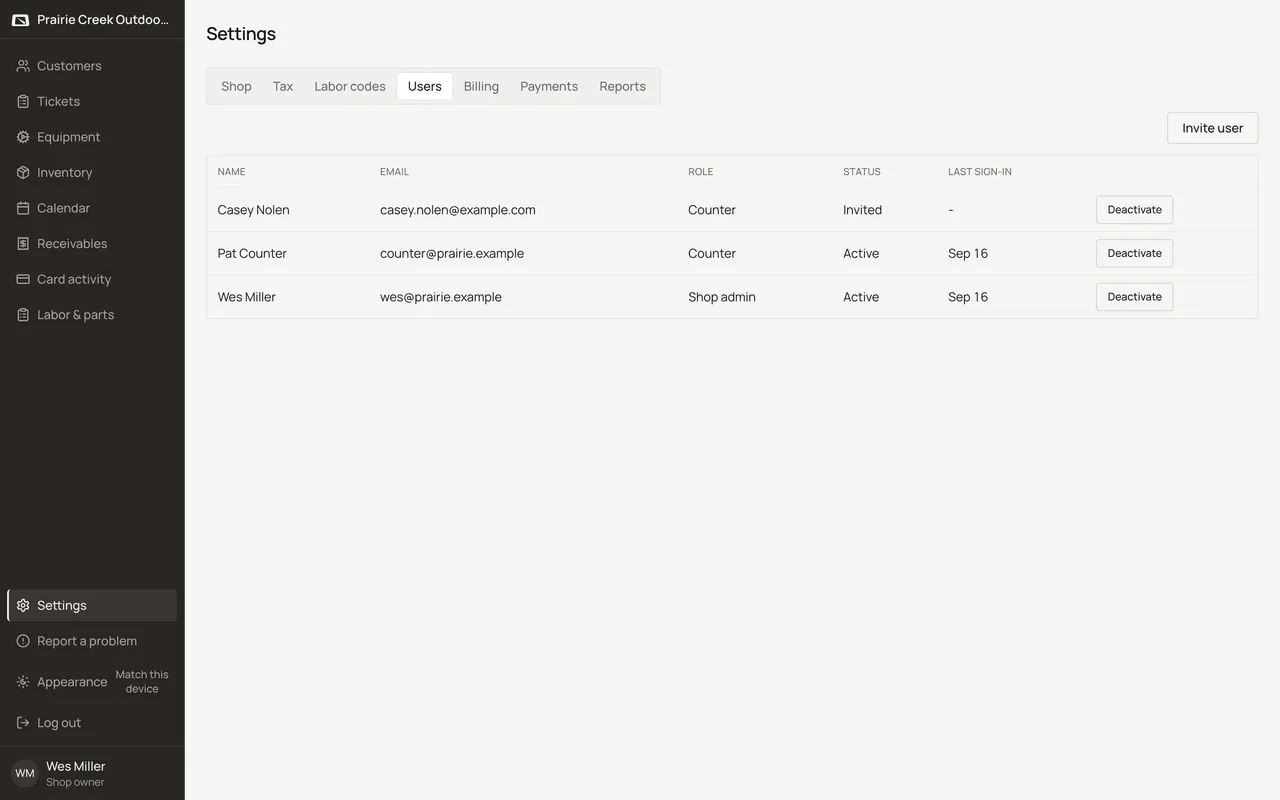
- Click Deactivate or Reactivate on their row.
- A banner confirms the change, for example “Wes is deactivated.” or “Wes is active again.”
- Deactivating yourself, or the last active shop owner, does not disable the button. It shows a message instead: “You cannot deactivate yourself.” or “At least one shop admin must stay active.” A shop always needs at least one owner signed in who can reach Settings.
What happens to money and stock
Nothing moves. Deactivating only blocks sign-in; every ticket that person touched stays on file.
Watch out for
- The button never disables itself. Deactivating your own row shows "You cannot deactivate yourself." Deactivating the last active shop owner shows "At least one shop admin must stay active." Both show inline where the change would have been confirmed.
Not yet
No way to delete a user. Deactivate is the only option; their history stays on every past ticket.
Updated September 16, 2026