Set the shop's profile
Who this is for. Shop owner (counter sees it read-only).
Watch it
13 seconds, narrated, captions on. Sample shop. Made-up names and tickets.
What the clip says
Settings, Shop tab. Address, phone, and the shop code all live here. Fill in what is true for your shop. Save. The invoice letterhead uses this block.
The Shop tab holds the company’s own facts: name, address, timezone, phone, and the shop code. Fill these in before the first ticket, since the invoice letterhead uses them right away.
Steps
- Settings, Shop tab.
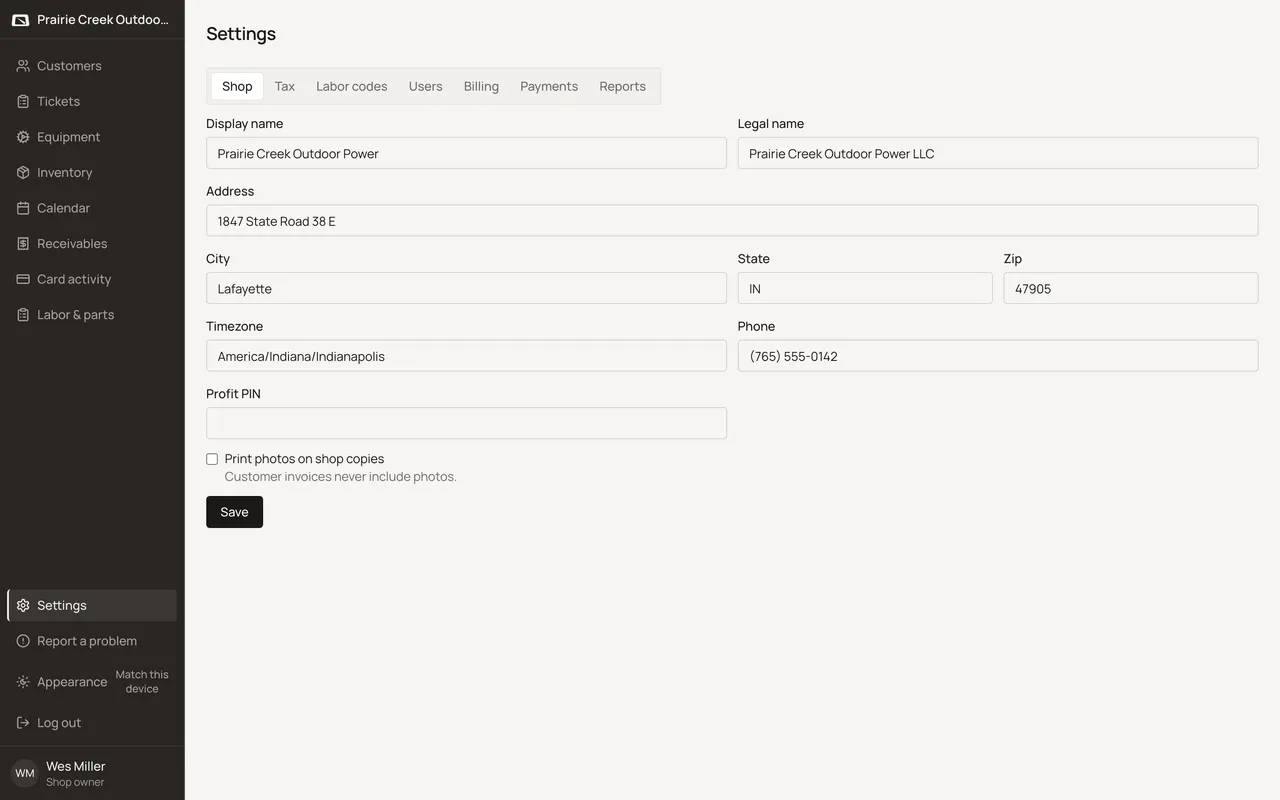
- Fill Display name, Legal name, Address, City, State, Zip, Timezone, and Phone.
- Set the Profit PIN field. This is the same code the Show cost and Labor & parts screens call the shop code.
- Print photos on shop copies controls only the shop’s own printed copy. Customer invoices never include photos either way.
- Click Save. The confirmation reads “Shop saved. Invoice letterhead uses this shop block.”
What happens to money and stock
Nothing moves. Saving only changes what prints on the invoice letterhead.
Watch out for
- Counter sees the same fields read-only. Save is disabled for them.
- A new shop starts with the timezone set to America/Indiana/Indianapolis no matter where the shop actually is. Check and fix it here before trusting any date or time on a ticket.
Not yet
One address and one shop code per shop. There is no multi-location support.
Updated September 16, 2026