Switch appearance / dark mode
Who this is for. Any signed-in user.
Watch it
13 seconds, narrated, captions on. Sample shop. Made-up names and tickets.
What the clip says
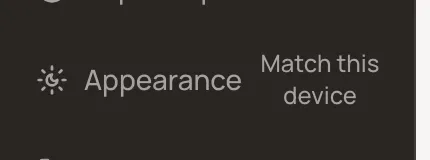
Appearance, at the bottom of the sidebar, starts on Match this device. Click it for Dark, click again for Light. It is set per device, not per account.
Pick system, light, or dark from Appearance in the sidebar footer. The choice is stored per device, not per account, so the counter PC by the window and a tablet in the back can each be set differently.
Steps
- Click Appearance in the sidebar footer to cycle the choice: Match this device, then Dark, then Light, then back to Match this device.
- Each device remembers its own choice. Setting it on one screen does not change any other.
What happens to money and stock
Nothing moves. This only changes how the screen looks.
Watch out for
- Stored per device, not synced to the account. The counter PC and a tablet can each be set differently.
Not yet
No schedule. Appearance only changes when someone clicks it; it doesn't switch itself by time of day.
Updated September 16, 2026