Report a problem
Who this is for. Any signed-in shop user.
Watch it
22 seconds, narrated, captions on. Sample shop. Made-up names and tickets.
What the clip says
Report a problem sits at the bottom of the sidebar, on every screen. It grabs a screenshot of this screen on its own. Say what went wrong, then Send. It comes back with a reference number to track.
Report a problem sits in the sidebar footer on every shop-floor screen. It auto-captures a screenshot, takes a short note, and gives back a reference number. Emailing support@reedport.com is the other way to reach ReedPort.
Steps
- Click Report a problem in the sidebar footer.
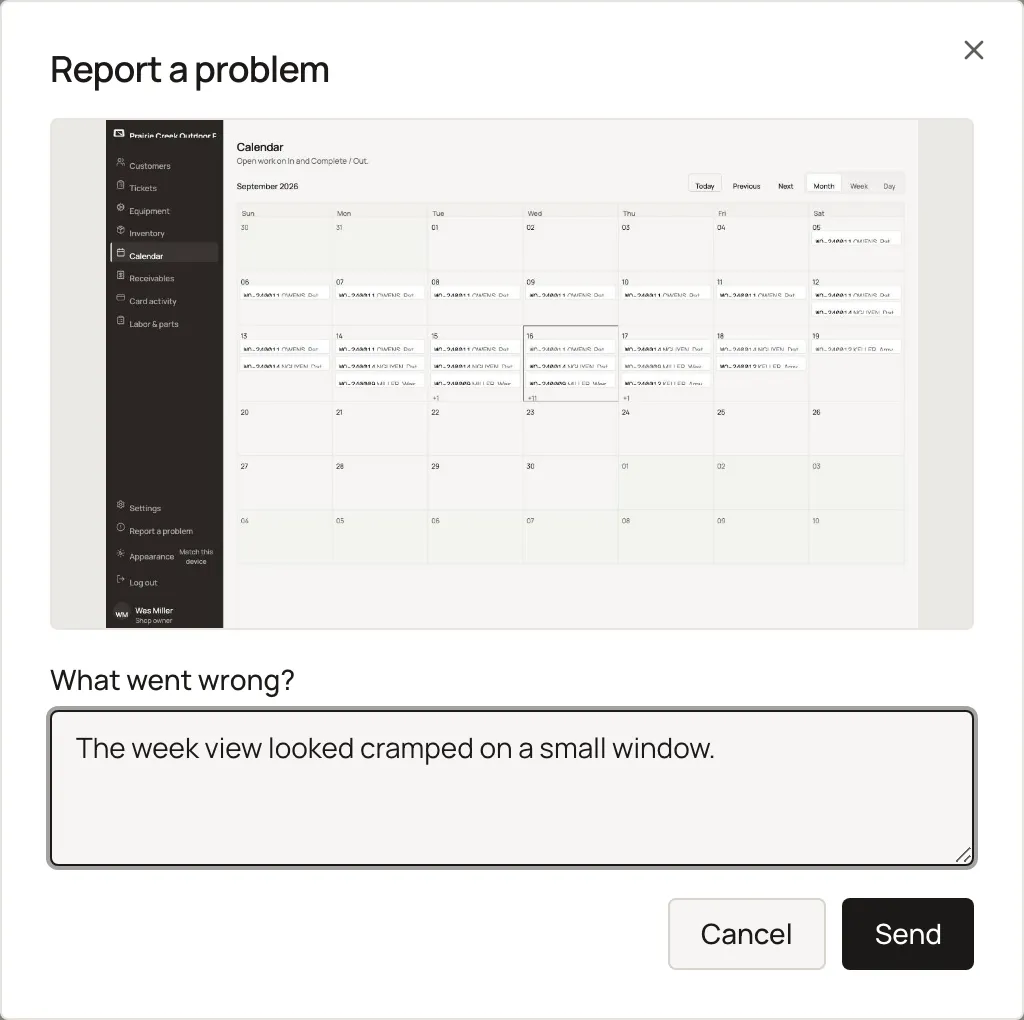
- Say what happened in What went wrong?. Name the screen and what you expected instead.
- Click Send. The confirmation shows a reference number. Keep it if you write to support@reedport.com about the same thing.
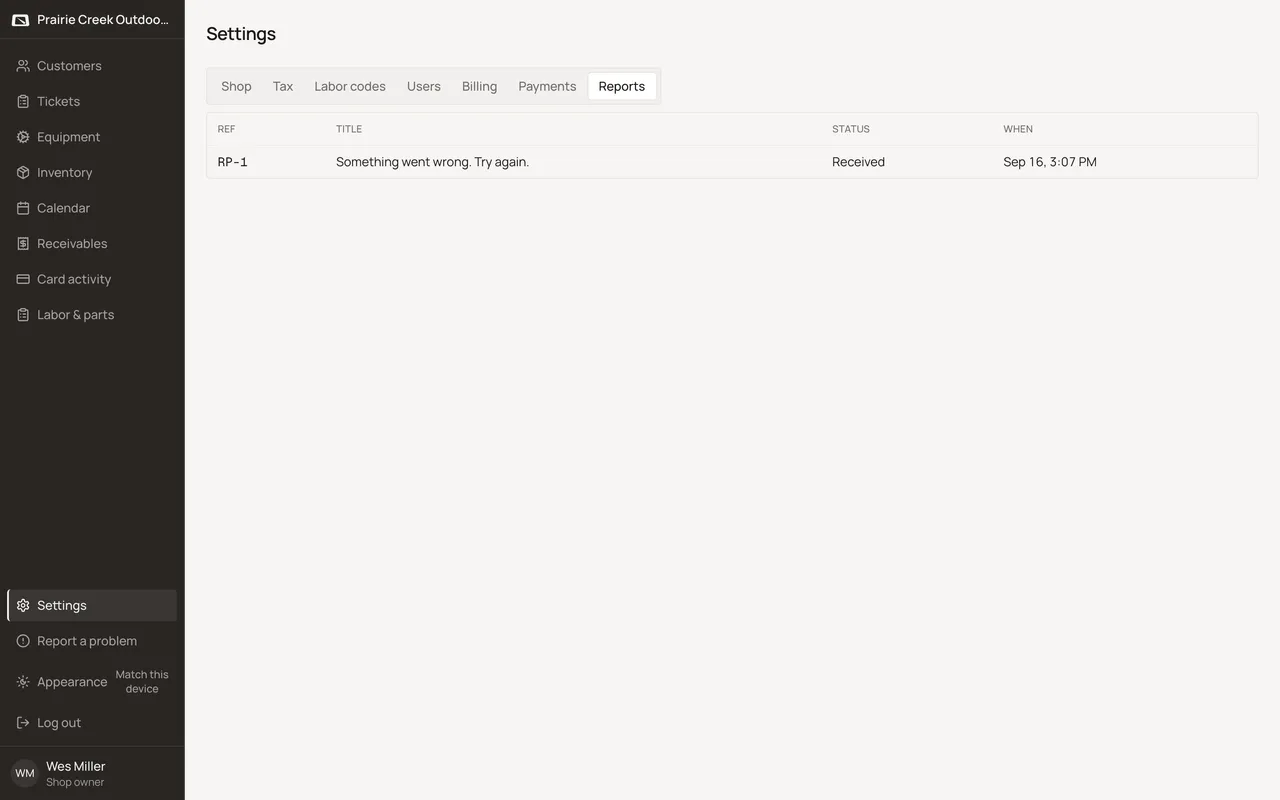
- Track it later on Settings, Reports: Ref, Title, Status, When. Status reads Received, We’re on it, Fixed, Not planned, or Already tracked.
What happens to money and stock
Nothing moves.
Watch out for
- It auto-captures a screenshot of the screen you're on. Check what's showing before you send it.
- Only your own shop's reports show on Settings, Reports. Nobody outside ReedPort sees them.
Not yet
No live chat. Report a problem and emailing support@reedport.com are the only two channels.
Updated September 16, 2026