Leave a note and add photos
Who this is for. Counter, shop owner. A phone or tablet is the realistic device for photos.
Watch it
18 seconds, narrated, captions on. Sample shop. Made-up names and tickets.
What the clip says
Comments print under that machine's lines on the invoice. Add photos takes more than one at a time, or drag them onto the strip. Each photo gets its own caption before the ticket is finished.
Comments is a plain textarea per machine, printed under that machine’s lines. Photos sit under Comments, with a caption on each one.
Steps
- Comments is a plain textarea per machine, printed under that machine’s lines on the invoice or print sheet.
- Take photo (camera capture, phone or tablet only) and Add photos (file picker, accepts multiple) both live under Comments. Drag-and-drop and paste onto the strip also work.
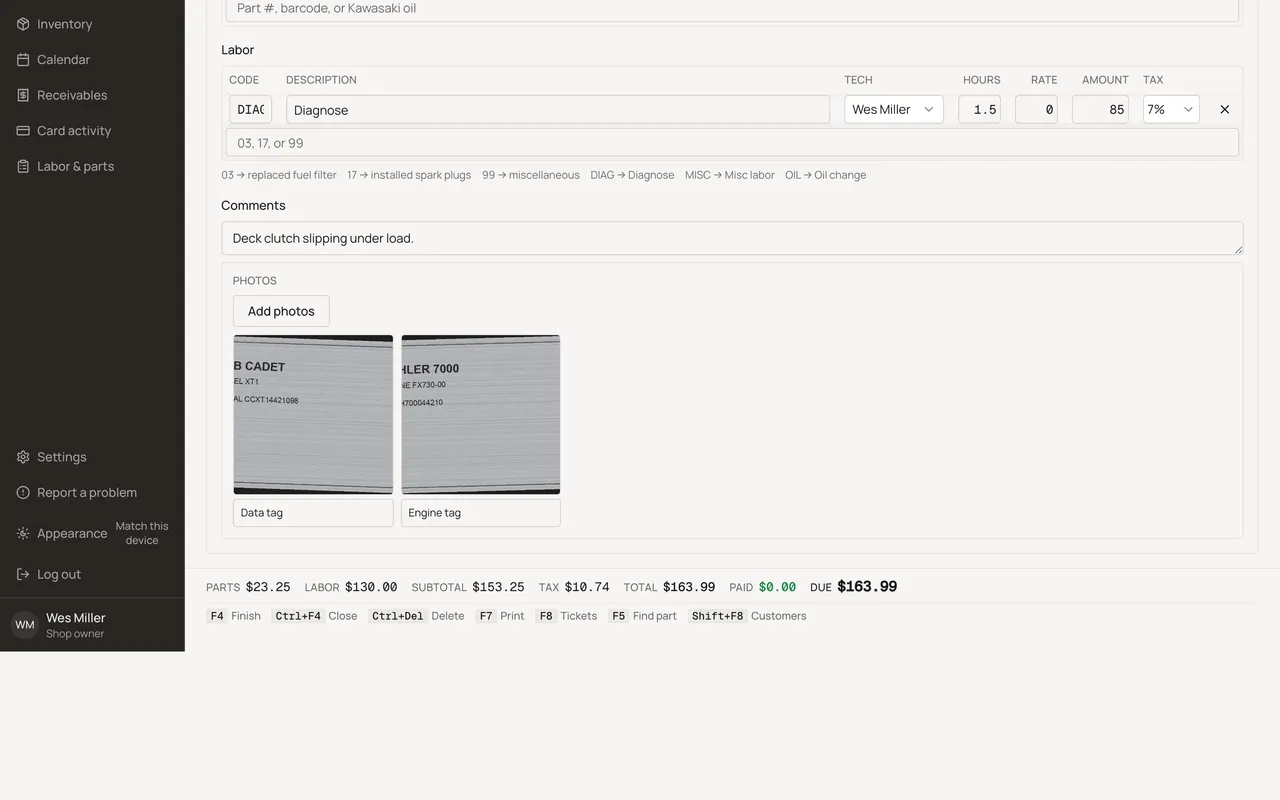
- Each photo gets an inline Caption field, up to 200 characters, saved on blur or Enter.
- A click opens a full-size view with its own Remove. Removing a machine from the ticket is blocked while it still has photos.
Watch out for
- Capped at 25 ready photos per machine. HEIC files are rejected.
- Customer-facing invoices never include photos. Only shop copies do, and only if that setting is on.
Updated September 16, 2026