Receive stock
Who this is for. Counter, shop owner.
Watch it
27 seconds, narrated, captions on. Sample shop. Made-up names and tickets.
What the clip says
Sign in, then open Inventory and Receive. Punch the part number straight off the packing slip. A known part matches and adds its own line to the table. Set the quantity delivered. Cost carries over to that part going forward. Receive is the one step that actually raises on-hand. It never posts without that click, even when every line matches.
One review table handles every source: typed or scanned parts, or a dropped supplier PDF, photo, or pasted email. Nothing moves on-hand until the explicit Receive click.
Steps
- Punch or scan parts. A known match adds or increments a line; an unknown one offers Create “<text>” to add the product at zero on-hand.
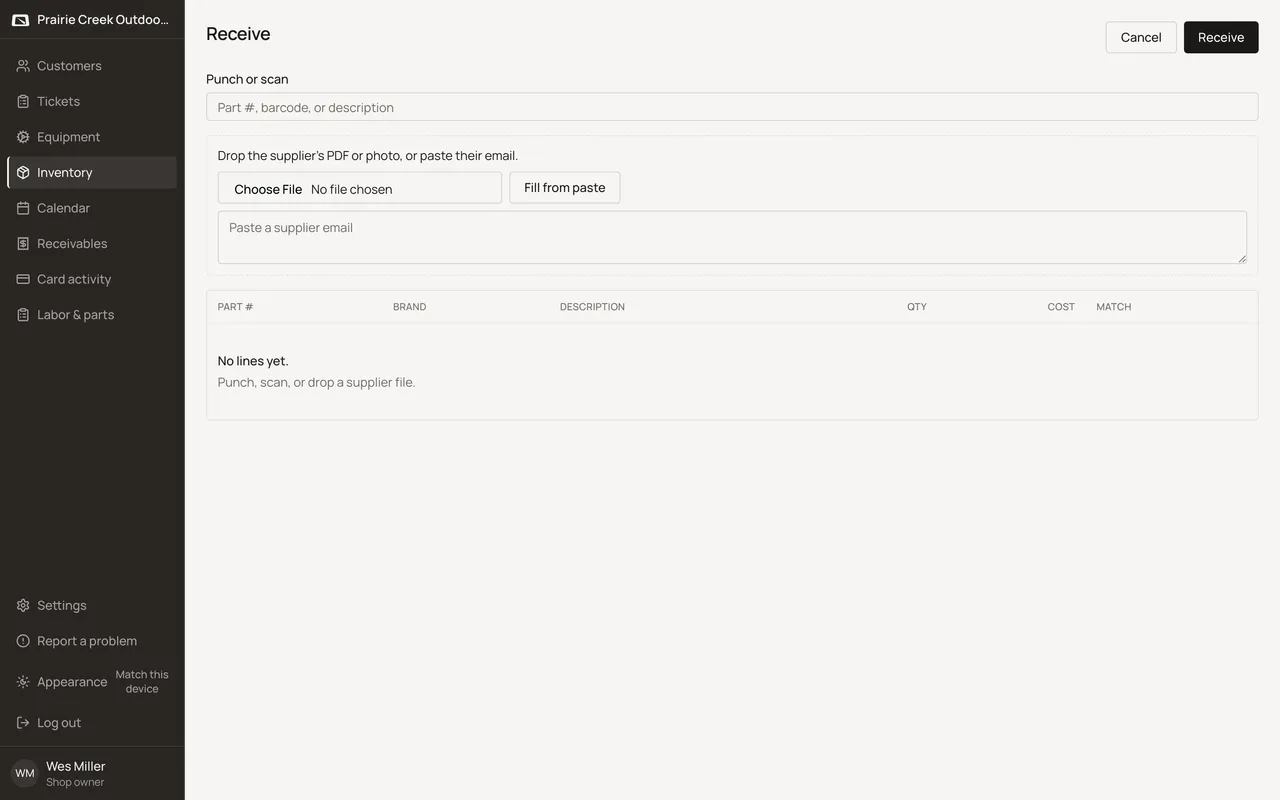
- Or drop the supplier’s PDF or photo into the drop zone, or paste their email and click Fill from paste. The extract fills the table with a note to review it before confirming.
- Review Part #, Brand, Description, Qty, and Cost on every line, and each line’s Matched or Create product state, before confirming.
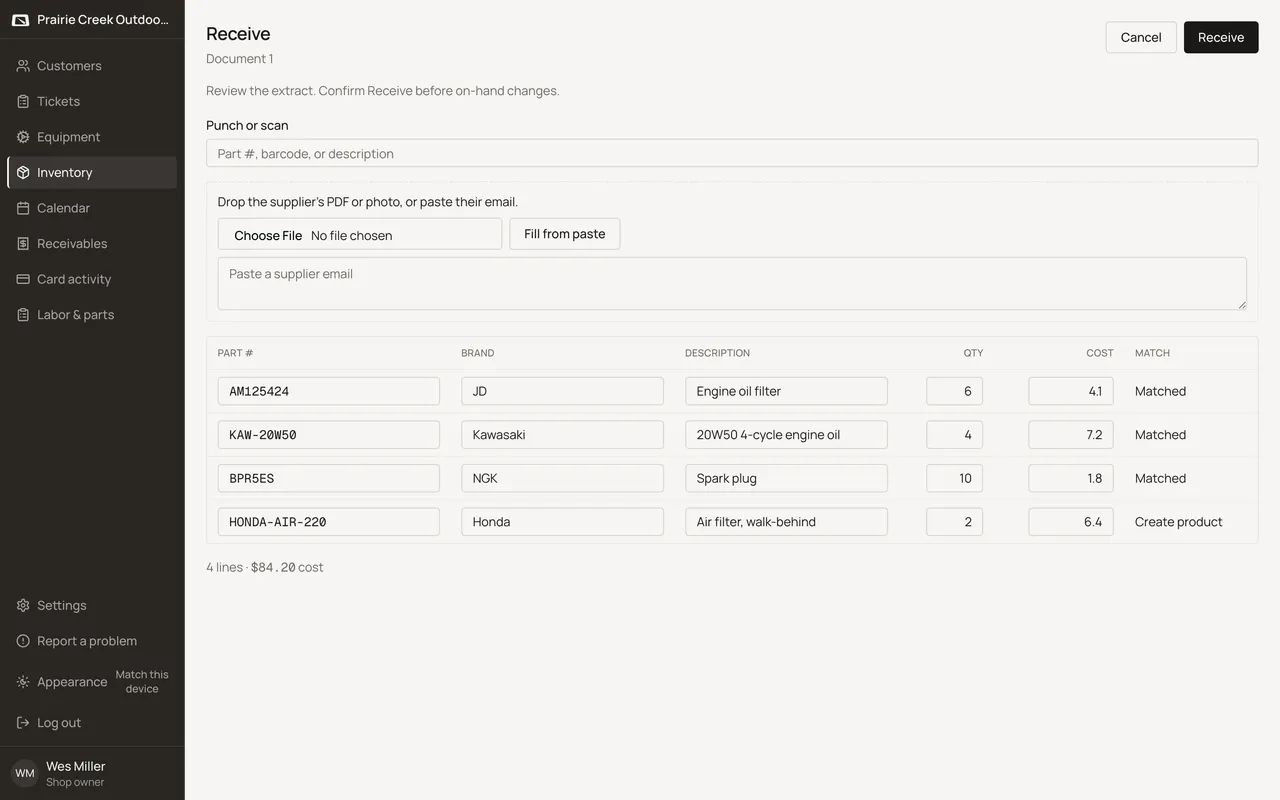
- Click Receive. Cancel discards the draft with no inventory change.
What happens to money and stock
Receive posts a receive movement per line and raises on-hand; a real cost on a line replaces that product's cost going forward.
Watch out for
- Never posts without the explicit Receive click, even for an all-matched extract.
Not yet
There is no way to place or track a purchase order with a supplier. Receive only records stock that has already arrived.
Updated September 16, 2026