Reopen, delete, or void a ticket
Who this is for. Counter can delete an unfinished ticket; only the shop owner can void an invoiced one.
Watch it
24 seconds, narrated, captions on. Sample shop. Made-up names and tickets.
What the clip says
Sign in and open an invoiced ticket that needs undoing. The overflow menu holds Void invoice. Only the shop owner sees it. It names the invoice and warns that this prints a reversal. Void invoice reopens the ticket and reverses the original tender. It lands straight on the new reversal, ready to print.
Delete removes an unfinished ticket outright. Void reopens an invoiced ticket to Active and prints a reversal instead of erasing what happened.
Steps
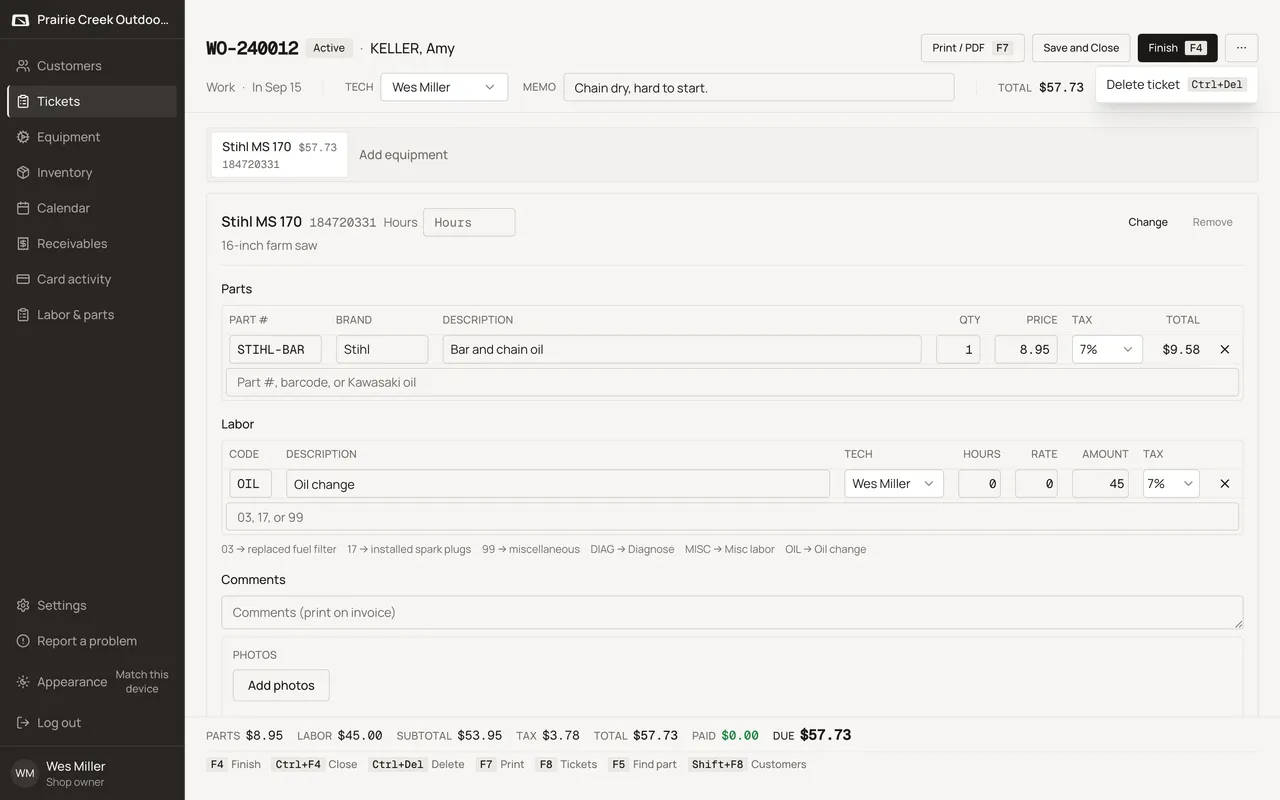
- Open the ticket’s overflow menu, or press Ctrl+Del.
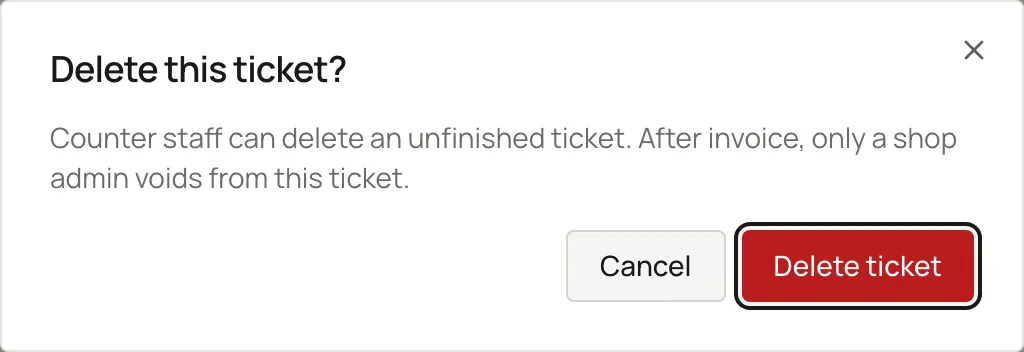
- While unfinished, Delete this ticket? confirms with Delete ticket. Counter staff can do this.
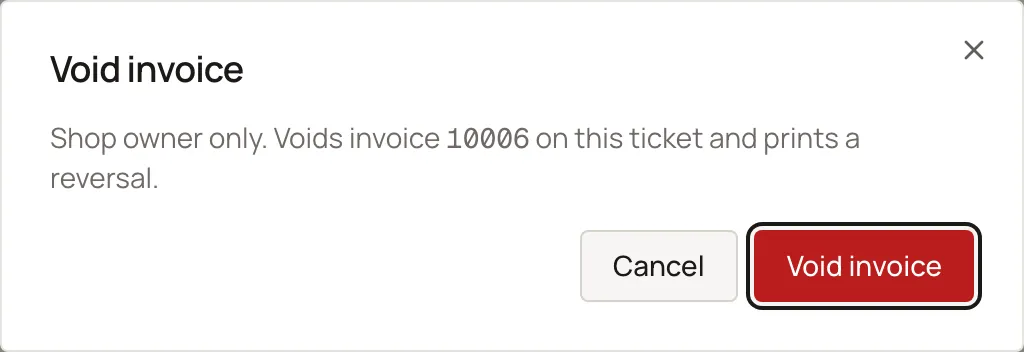
- Once invoiced, Void invoice confirms with copy naming the invoice number and confirming it prints a reversal. It is shop owner only, and lands on the new reversal’s invoice.
- Voiding also clears the ticket’s Done / Out date back to blank, so a reopened ticket returns to a single day on the calendar.
Keys
- Ctrl+Del
- Opens Delete this ticket, or Void invoice once invoiced.
What happens to money and stock
Void reopens the ticket to Active, writes a Reversal invoice, restores stock with reversal movements, and undoes each original tender.
Watch out for
- Two people saving the same ticket is last-write-wins with a banner, not a lock.
- A reversal can't itself be voided.
Not yet
There is no way to void a single line. Voiding always undoes the whole invoice.
Updated September 16, 2026