Set up card payments for customers
Who this is for. Shop owner.
Watch it
15 seconds, narrated, captions on. Sample shop. Made-up names and tickets.
What the clip says
Settings, Payments tab. Cash, Check, and Card, each on or off. This is a separate Stripe relationship from the $40 ReedPort bill. Set up card payments opens Stripe's own onboarding to finish it.
Settings, Payments is where the shop takes its customers’ cards. It is a separate Stripe relationship from Settings, Billing, which is the shop’s own $40 a month bill to ReedPort.
Steps
- Settings, Payments tab.
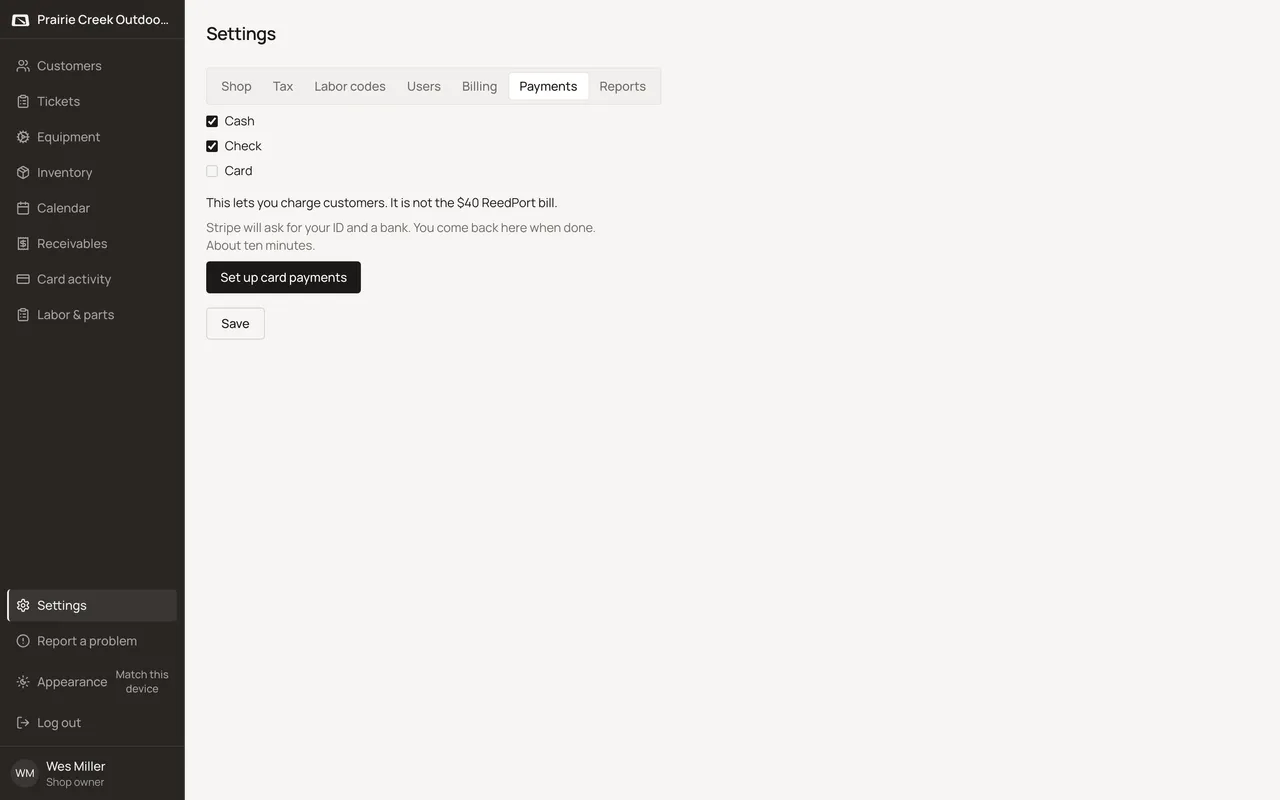
- Click Set up card payments. Stripe asks for a payout bank, business details, and your identity, about ten minutes total.
- If you stop partway, the tab shows what Stripe still needs and a Continue card setup button until every step is done.
- Once ready, the tab reads “You can take cards on Finish.” and the Card checkbox becomes available to turn on as a tender.
- Optionally, open Add a card reader and fill Reader pairing code and Label, then click Register reader.
[Missing screenshot: guide/card-setup-2.png]
- Click Save to store which tenders are on. The confirmation reads “Payment types saved. Hidden tenders stay off Apply payment.”
What happens to money and stock
Nothing moves at setup. Once ready, a Finish with Card as the tender is what actually moves money, through Stripe.
Watch out for
- This is a separate Stripe relationship from the $40 a month ReedPort bill. The Payments tab's own text says so: "This lets you charge customers. It is not the $40 ReedPort bill."
- Card capture activity shows up on its own Card activity page, not in Settings.
- Counter never sees the setup button, only a one-line pointer: "Card setup is off until the owner finishes it in Settings, then Payments."
Not yet
No card capture without finishing Stripe Express onboarding first. There is no shortcut.
Updated September 16, 2026