Work from a tablet or phone
Who this is for. Counter, shop owner.
Watch it
20 seconds, narrated, captions on. Sample shop. Made-up names and tickets.
What the clip says
The same daily path works on a tablet or phone, just narrower. A Camera button sits beside the part punch, for a barcode scan. Photos get a Take photo button too, next to Add photos.
The daily path is the same ticket, customer, and inventory work described in the earlier chapters. On a phone or tablet, a few controls change to fit a touch screen and a camera.
Steps
- A Camera button sits beside any punch field on a touch device. Tap it, point the camera at the barcode, and the scanned value fills the field the same way a keyed scan would.
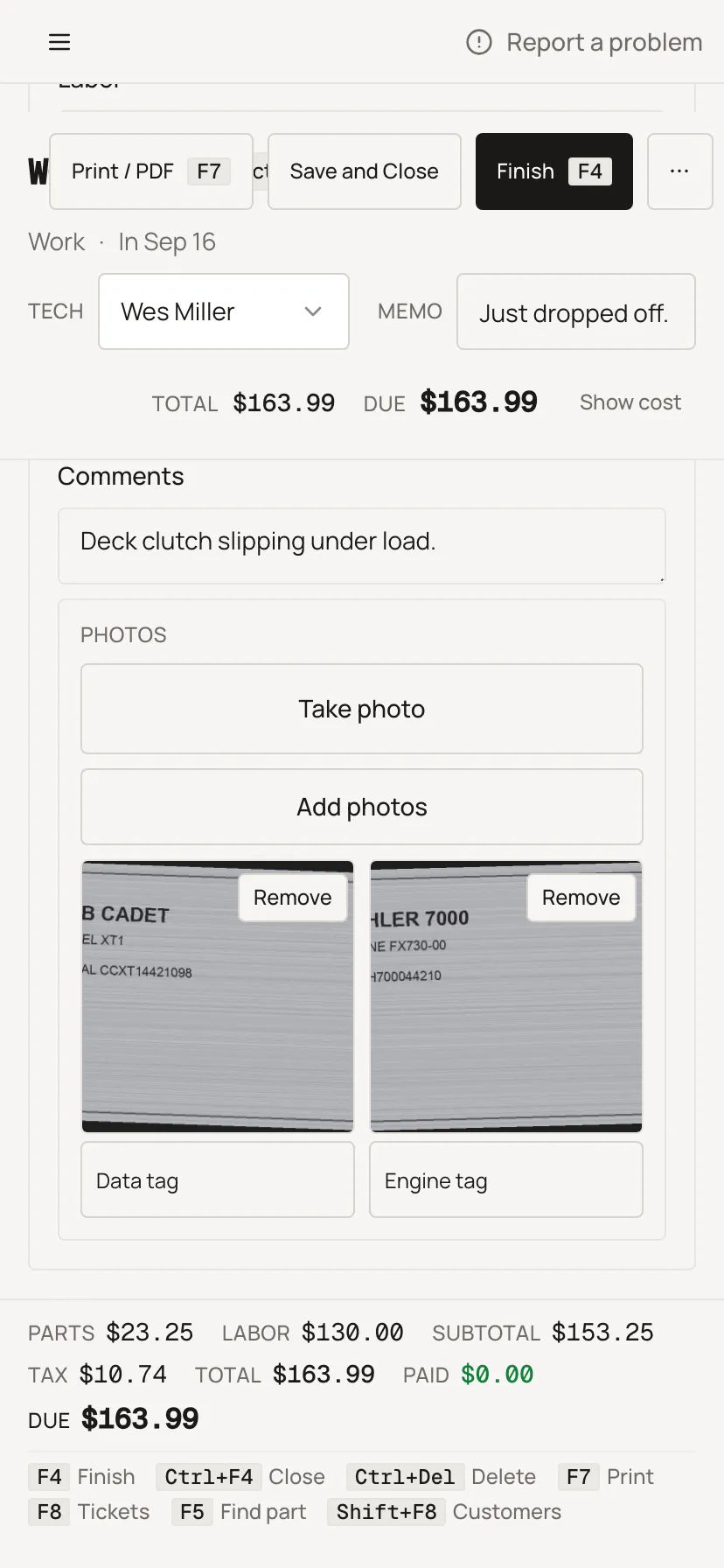
- Under Comments, Take photo opens the device’s camera; Add photos opens the file picker. Desktop only shows Add photos.
- The photo grid switches to two columns with full-width buttons on a phone or tablet, instead of the wider desktop grid.
[Missing screenshot: guide/tablet-and-phone-2.png]
What happens to money and stock
Nothing moves. The daily path works the same; only the input options on screen change.
Watch out for
- The camera scan button only appears on touch, coarse-pointer devices. A mouse-and-keyboard counter PC never shows it.
- Take photo (camera capture) only appears on phone or tablet. A desktop only gets Add photos, the file picker.
Not yet
No dedicated tablet app. A tablet or phone runs the same site in a narrower window.
Updated September 16, 2026